> ## Documentation Index
> Fetch the complete documentation index at: https://docs.coddo.ai/llms.txt
> Use this file to discover all available pages before exploring further.
# Chat Interface
> Talk to Claude Code or Codex through a rich visual interface with streaming, diffs, and more.
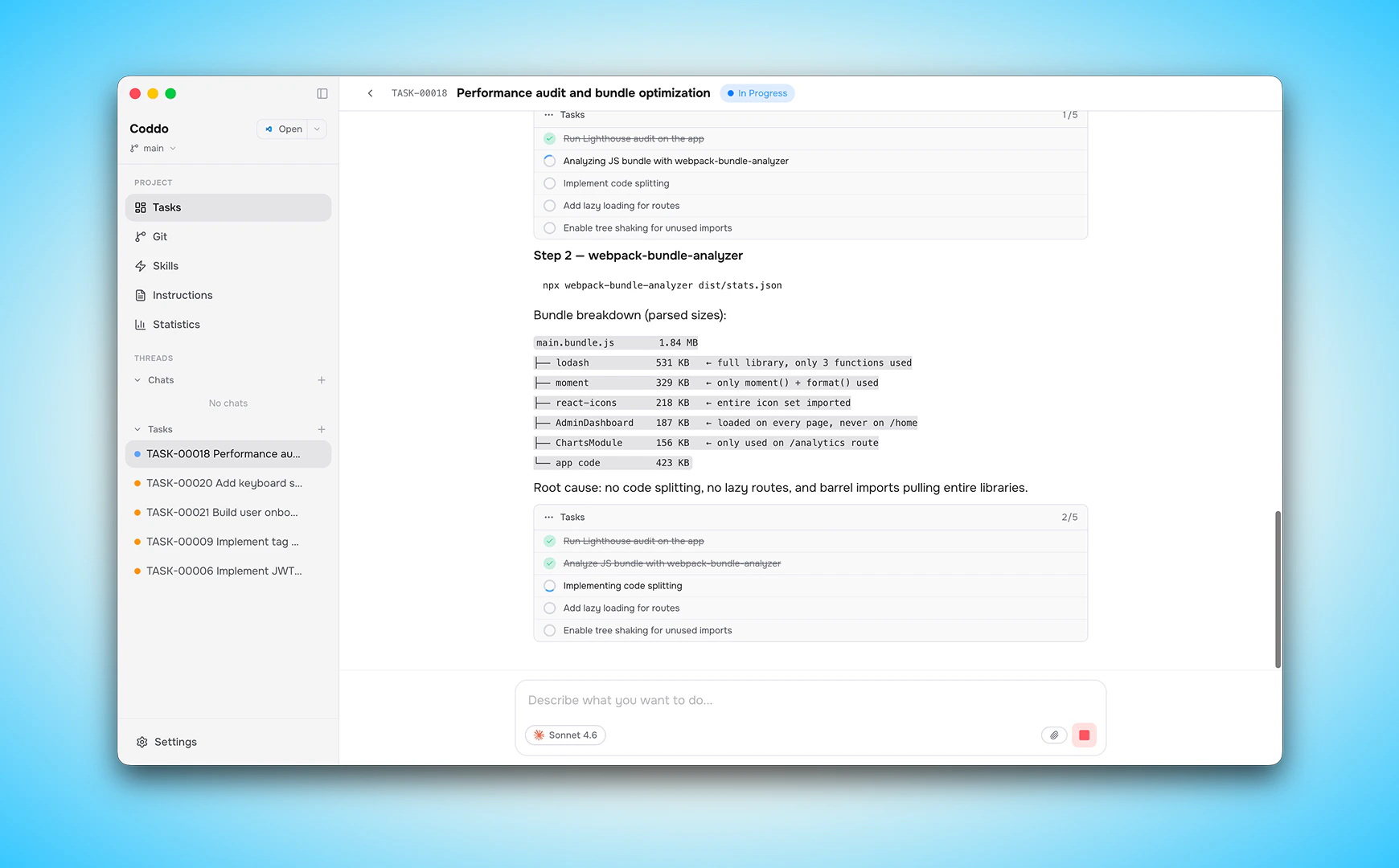
The Chat view is where you interact with your agent — **Claude Code** or **Codex CLI**. Instead of working in a terminal, you get a rich UI with real-time streaming, tool use visualization, and interactive blocks.
 ## Chat threads
Each project can have **multiple chat threads**. You can create new threads for different tasks or conversations. Threads are persisted locally in your project's `.coddo/threads/` directory.
* **Create** a new chat from the sidebar
* **Resume** a previous conversation — Coddo reuses the provider's native session system to maintain context
* **Pin** a chat to keep it at the top of the sidebar
* **Rename** a chat via the **more** menu
* **Delete** threads you no longer need
When a Kanban task starts, a chat thread is **automatically created and linked** to it.
## Chat modes
Coddo supports two chat modes that change how the agent responds. Switch modes from the **mode selector** in the chat input area.
### Execution mode
The default mode. The agent **reads, writes, and runs code** in your project. It executes tools, creates files, runs commands, and makes real changes to your codebase.
### Plan mode
The agent only **analyzes and plans** without making any changes. It reads your code and proposes a strategy, but does not write files or run commands. Use this when you want to:
* Get an implementation plan before committing to changes
* Understand a complex part of the codebase
* Review architecture decisions
You can set the default chat mode in **Settings**.
## Real-time streaming
Messages from the agent are **streamed in real time** as they're generated, with your codebase as context. Your last message is **pinned at the top of the chat view** with sticky scroll, so you always keep sight of what you asked while the agent responds below.
## Providers and models
Coddo supports both **Claude Code** and **OpenAI Codex CLI** as execution backends. Pick the provider in the model selector inside the chat input area or in the task creation dialog. Provider and model info also show up in the statistics view.
### Claude models
| Model | Description |
| -------------- | ----------------------------- |
| **Sonnet 4.6** | Fast and performant (default) |
| **Opus 4.7** | Most intelligent |
| **Haiku 4.5** | Fastest and most economical |
### Codex models
| Model | Description |
| ------------------- | ----------------------------------- |
| **GPT-5.5** | Latest general-purpose OpenAI model |
| **GPT-5.4** | High-performance generation |
| **GPT-5.4 Mini** | Smaller and faster |
| **5.3 Codex** | Codex-tuned model |
| **5.3 Codex Spark** | Lightweight Codex variant |
You can set a default model in **Settings** and override it per chat or per task. The chat view remembers the last-used model for each conversation and restores it when you come back.
If no provider is configured, the model selector redirects you to **Settings** where you can authenticate Claude and/or Codex.
## Message types
### Text messages
Standard markdown-formatted messages with full rendering support - headings, lists, code blocks, tables, and more.
The chat input uses a **rich text editor** with support for bold, italic, inline code, code blocks, and lists — so you can format your messages before sending.
### Voice dictation
Every chat input and task instruction field has a **mic button**. Click it to record, click again to stop, and the transcribed text is dropped straight into the field — ready to edit or send. See the [Voice Dictation](/features/voice-dictation) page for details, language settings, and limits.
### Tool use blocks
When the agent uses a tool (reading files, writing code, running commands), you see a **Tool Use Block** showing:
* The tool name and input parameters
* The output/result
* Expandable details for long outputs
### Skill cards
When a chat invokes a [skill](/features/skills), the message renders as a dedicated **skill card** with the skill name, icon, author, and key parameters — so you can see at a glance which skill ran and how.
### Diff viewer
For worktree task threads, a **visual diff viewer** shows all changes made by the task compared to the base branch - with syntax highlighting showing exactly what was added, modified, or removed.
### Question blocks
When the agent asks you a question with multiple options, you get an interactive **Question Block** with clickable choices and descriptions.
### Todo blocks
The agent's internal task lists are rendered as **Todo Blocks**, showing you the planned steps and progress.
## Image support
You can include images in your messages:
* **Drag and drop** images directly into the chat input
* **Paste** images from your clipboard
* Supports all common image formats (PNG, JPG, GIF, WebP, SVG, etc.)
This is useful for sharing mockups, screenshots, or design references with the agent.
## Duration & cost tracking
Each message displays its **duration**, **token count**, and **cost** — so you can track how long the agent takes to respond and how much each interaction costs.
## Chat header quick actions
The chat header gives you one-click access to the most common task operations:
* **Checkout** — switch to the task's branch
* **Cancel** — stop the current run
* **Archive** / **Delete** — clean up the thread
* **Diff** — open the diff viewer for the chat's changes
The header also surfaces keyboard shortcut hints on hover so you can learn them as you go.
## Chat threads
Each project can have **multiple chat threads**. You can create new threads for different tasks or conversations. Threads are persisted locally in your project's `.coddo/threads/` directory.
* **Create** a new chat from the sidebar
* **Resume** a previous conversation — Coddo reuses the provider's native session system to maintain context
* **Pin** a chat to keep it at the top of the sidebar
* **Rename** a chat via the **more** menu
* **Delete** threads you no longer need
When a Kanban task starts, a chat thread is **automatically created and linked** to it.
## Chat modes
Coddo supports two chat modes that change how the agent responds. Switch modes from the **mode selector** in the chat input area.
### Execution mode
The default mode. The agent **reads, writes, and runs code** in your project. It executes tools, creates files, runs commands, and makes real changes to your codebase.
### Plan mode
The agent only **analyzes and plans** without making any changes. It reads your code and proposes a strategy, but does not write files or run commands. Use this when you want to:
* Get an implementation plan before committing to changes
* Understand a complex part of the codebase
* Review architecture decisions
You can set the default chat mode in **Settings**.
## Real-time streaming
Messages from the agent are **streamed in real time** as they're generated, with your codebase as context. Your last message is **pinned at the top of the chat view** with sticky scroll, so you always keep sight of what you asked while the agent responds below.
## Providers and models
Coddo supports both **Claude Code** and **OpenAI Codex CLI** as execution backends. Pick the provider in the model selector inside the chat input area or in the task creation dialog. Provider and model info also show up in the statistics view.
### Claude models
| Model | Description |
| -------------- | ----------------------------- |
| **Sonnet 4.6** | Fast and performant (default) |
| **Opus 4.7** | Most intelligent |
| **Haiku 4.5** | Fastest and most economical |
### Codex models
| Model | Description |
| ------------------- | ----------------------------------- |
| **GPT-5.5** | Latest general-purpose OpenAI model |
| **GPT-5.4** | High-performance generation |
| **GPT-5.4 Mini** | Smaller and faster |
| **5.3 Codex** | Codex-tuned model |
| **5.3 Codex Spark** | Lightweight Codex variant |
You can set a default model in **Settings** and override it per chat or per task. The chat view remembers the last-used model for each conversation and restores it when you come back.
If no provider is configured, the model selector redirects you to **Settings** where you can authenticate Claude and/or Codex.
## Message types
### Text messages
Standard markdown-formatted messages with full rendering support - headings, lists, code blocks, tables, and more.
The chat input uses a **rich text editor** with support for bold, italic, inline code, code blocks, and lists — so you can format your messages before sending.
### Voice dictation
Every chat input and task instruction field has a **mic button**. Click it to record, click again to stop, and the transcribed text is dropped straight into the field — ready to edit or send. See the [Voice Dictation](/features/voice-dictation) page for details, language settings, and limits.
### Tool use blocks
When the agent uses a tool (reading files, writing code, running commands), you see a **Tool Use Block** showing:
* The tool name and input parameters
* The output/result
* Expandable details for long outputs
### Skill cards
When a chat invokes a [skill](/features/skills), the message renders as a dedicated **skill card** with the skill name, icon, author, and key parameters — so you can see at a glance which skill ran and how.
### Diff viewer
For worktree task threads, a **visual diff viewer** shows all changes made by the task compared to the base branch - with syntax highlighting showing exactly what was added, modified, or removed.
### Question blocks
When the agent asks you a question with multiple options, you get an interactive **Question Block** with clickable choices and descriptions.
### Todo blocks
The agent's internal task lists are rendered as **Todo Blocks**, showing you the planned steps and progress.
## Image support
You can include images in your messages:
* **Drag and drop** images directly into the chat input
* **Paste** images from your clipboard
* Supports all common image formats (PNG, JPG, GIF, WebP, SVG, etc.)
This is useful for sharing mockups, screenshots, or design references with the agent.
## Duration & cost tracking
Each message displays its **duration**, **token count**, and **cost** — so you can track how long the agent takes to respond and how much each interaction costs.
## Chat header quick actions
The chat header gives you one-click access to the most common task operations:
* **Checkout** — switch to the task's branch
* **Cancel** — stop the current run
* **Archive** / **Delete** — clean up the thread
* **Diff** — open the diff viewer for the chat's changes
The header also surfaces keyboard shortcut hints on hover so you can learn them as you go.