

Chat threads
Each project can have multiple chat threads. You can create new threads for different tasks or conversations. Threads are persisted locally in your project’s.coddo/threads/ directory.
- Create a new chat from the sidebar
- Resume a previous conversation — Coddo reuses the provider’s native session system to maintain context
- Pin a chat to keep it at the top of the sidebar
- Rename a chat via the more menu
- Delete threads you no longer need
Chat modes
Coddo supports two chat modes that change how the agent responds. Switch modes from the mode selector in the chat input area.Execution mode
The default mode. The agent reads, writes, and runs code in your project. It executes tools, creates files, runs commands, and makes real changes to your codebase.Plan mode
The agent only analyzes and plans without making any changes. It reads your code and proposes a strategy, but does not write files or run commands. Use this when you want to:- Get an implementation plan before committing to changes
- Understand a complex part of the codebase
- Review architecture decisions
Real-time streaming
Messages from the agent are streamed in real time as they’re generated, with your codebase as context. Your last message is pinned at the top of the chat view with sticky scroll, so you always keep sight of what you asked while the agent responds below.Providers and models
Coddo supports both Claude Code and OpenAI Codex CLI as execution backends. Pick the provider in the model selector inside the chat input area or in the task creation dialog. Provider and model info also show up in the statistics view.Claude models
Codex models
You can set a default model in Settings and override it per chat or per task. The chat view remembers the last-used model for each conversation and restores it when you come back.
If no provider is configured, the model selector redirects you to Settings where you can authenticate Claude and/or Codex.
Message types
Text messages
Standard markdown-formatted messages with full rendering support - headings, lists, code blocks, tables, and more. The chat input uses a rich text editor with support for bold, italic, inline code, code blocks, and lists — so you can format your messages before sending.Voice dictation
Every chat input and task instruction field has a mic button. Click it to record, click again to stop, and the transcribed text is dropped straight into the field — ready to edit or send. See the Voice Dictation page for details, language settings, and limits.Tool use blocks
When the agent uses a tool (reading files, writing code, running commands), you see a Tool Use Block showing:- The tool name and input parameters
- The output/result
- Expandable details for long outputs
Skill cards
When a chat invokes a skill, the message renders as a dedicated skill card with the skill name, icon, author, and key parameters — so you can see at a glance which skill ran and how.Diff viewer
For worktree task threads, a visual diff viewer shows all changes made by the task compared to the base branch - with syntax highlighting showing exactly what was added, modified, or removed.Question blocks
When the agent asks you a question with multiple options, you get an interactive Question Block with clickable choices and descriptions.Todo blocks
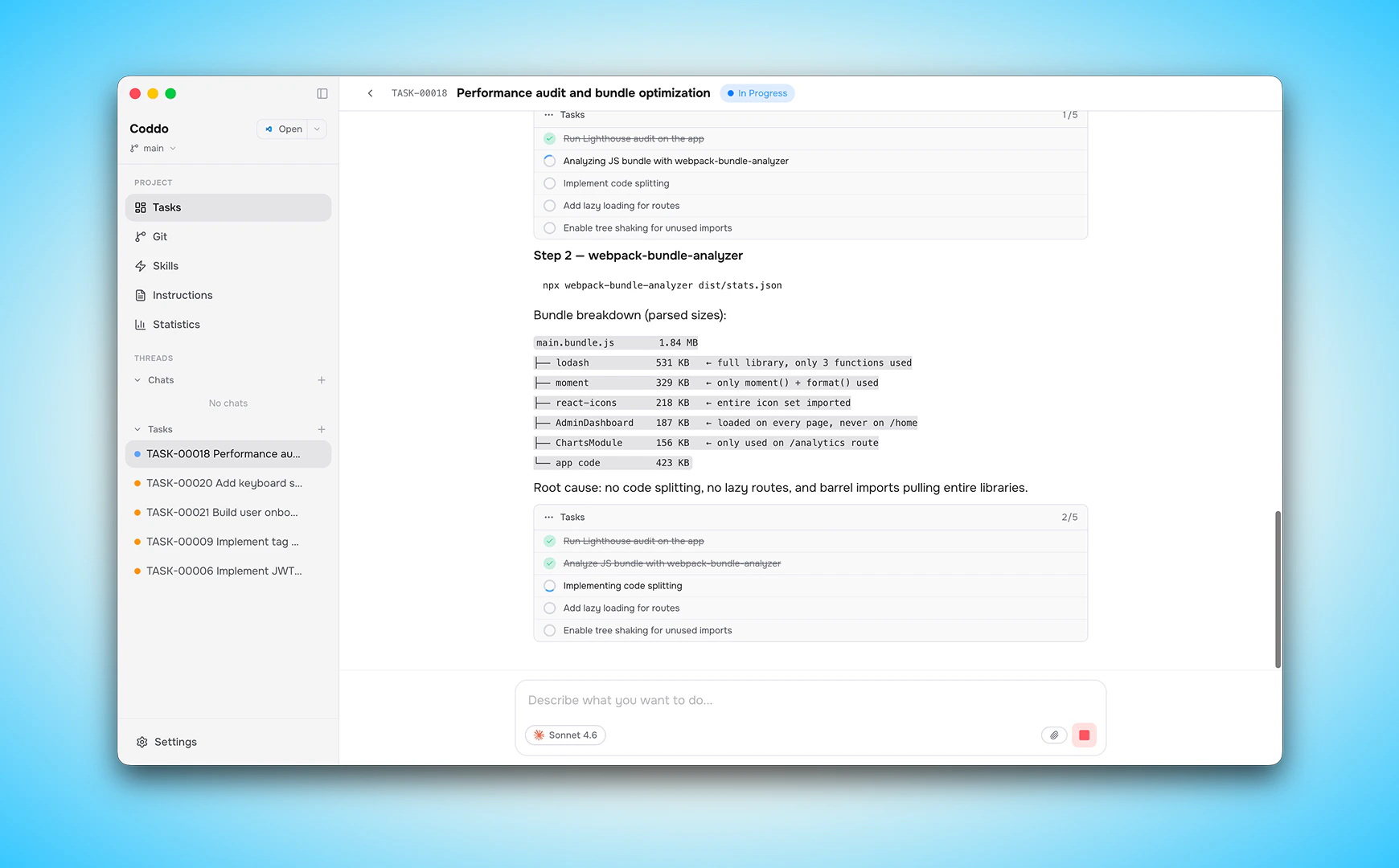
The agent’s internal task lists are rendered as Todo Blocks, showing you the planned steps and progress.Image support
You can include images in your messages:- Drag and drop images directly into the chat input
- Paste images from your clipboard
- Supports all common image formats (PNG, JPG, GIF, WebP, SVG, etc.)
Duration & cost tracking
Each message displays its duration, token count, and cost — so you can track how long the agent takes to respond and how much each interaction costs.Chat header quick actions
The chat header gives you one-click access to the most common task operations:- Checkout — switch to the task’s branch
- Cancel — stop the current run
- Archive / Delete — clean up the thread
- Diff — open the diff viewer for the chat’s changes