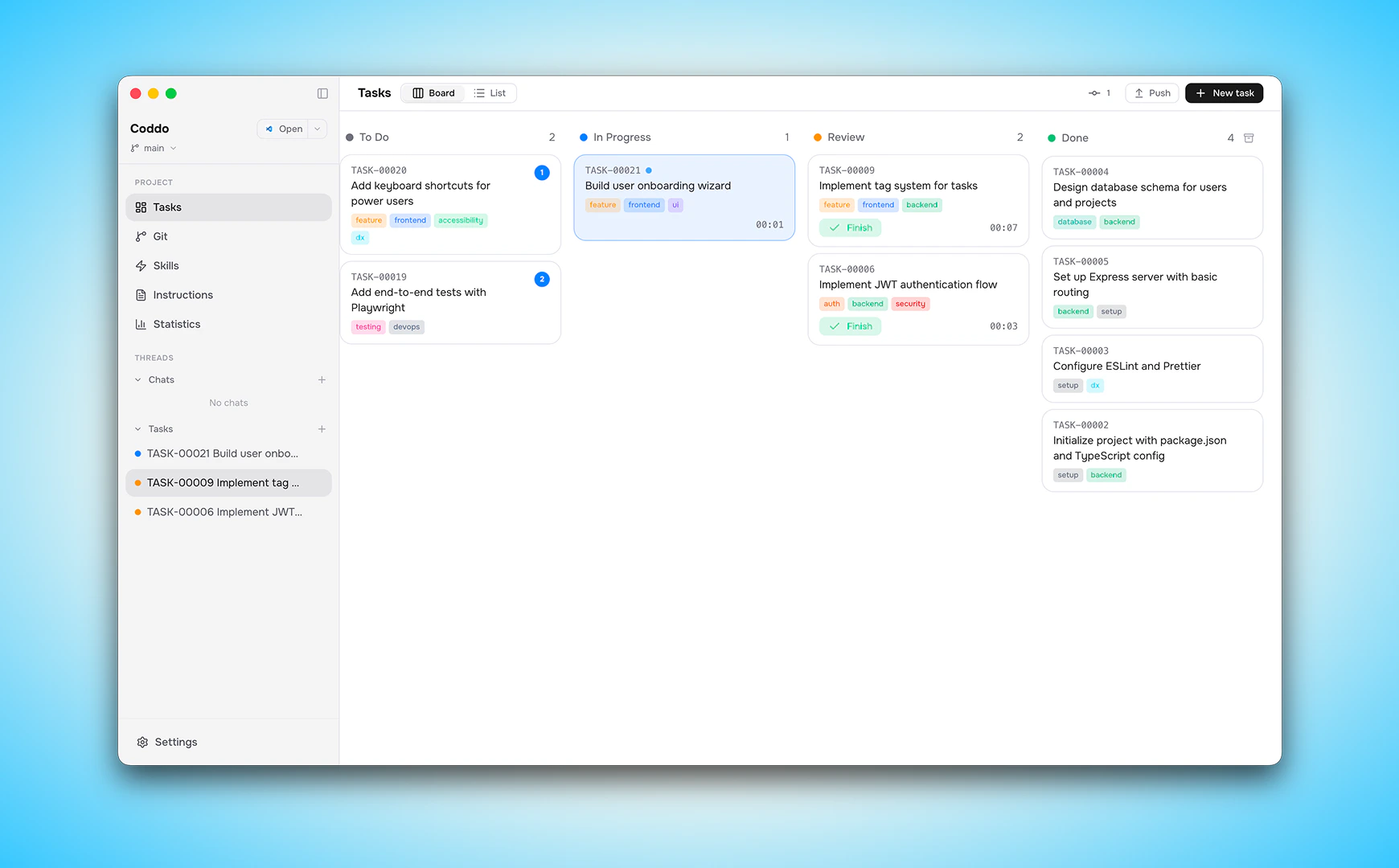
The Kanban board is the heart of Coddo’s task management. It gives you a visual overview of all your tasks and their progress, updated in real time as your agent (Claude Code or Codex) works.
Columns
Tasks flow through five columns. A bar chart at the top of the Kanban view shows the task count per column at a glance.
Creating tasks
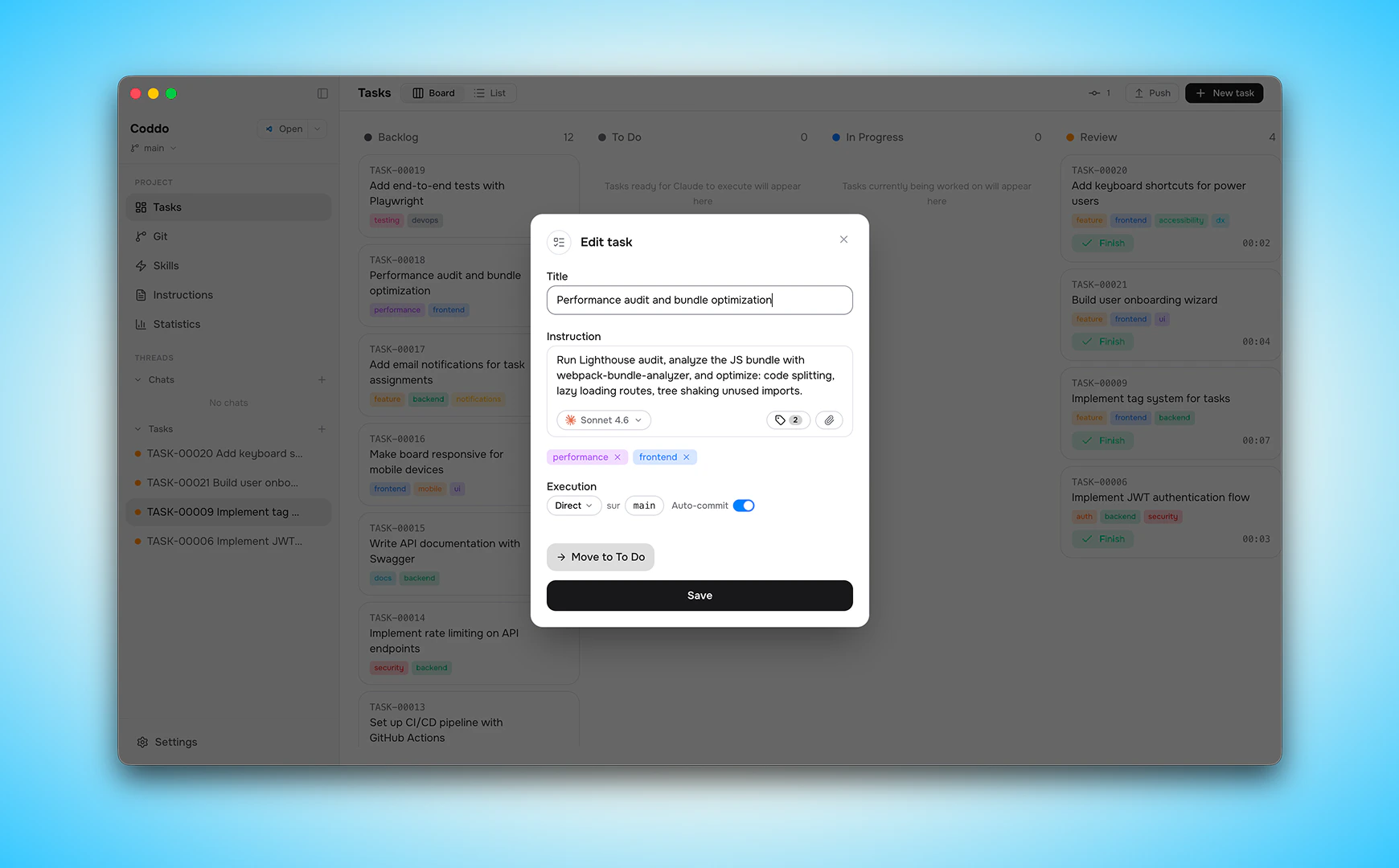
Click + New Task from the Kanban view or from the + button in the sidebar to open the task creation dialog. Each task gets a sequential number (TASK-00001, TASK-00002, etc.). Each task has:
- Title - A short name for the task
- Instruction - Detailed description of what the agent should do, with a rich text editor supporting bold, italic, code, and lists. You can also dictate the instruction with the mic button — see Voice Dictation
- Tags - Color-coded labels for categorization
- Execution mode -
worktree (isolated branch), direct (current branch), or last used. The default is configurable in Settings
- Provider & model - Choose Claude (Sonnet 4.6, Opus 4.7, Haiku 4.5) or Codex (GPT-5.5, GPT-5.4, GPT-5.4 Mini, 5.3 Codex, 5.3 Codex Spark)
- Images - Attach reference images or mockups (drag-and-drop or paste)
- Destination column - Choose where the task is created (Backlog or Todo). The default is configurable in Settings
- Auto-commit - Per-task toggle for direct mode tasks
Use the Reset button to clear all fields and start over.
If you close the task creation dialog before submitting, all fields (title, instruction, tags, mode, model, images) are preserved and restored when you reopen it.
main). Coddo automatically generates a branch name like coddo/1-fix-login.
For direct mode, you can optionally enable auto-commit and select a target branch.
Write clear, detailed instructions for best results. The instruction is what the agent uses to understand what you want.
Drag and drop
Reorder tasks within and between the Backlog and Todo columns by dragging them. Tasks in later columns (In Progress, Review, Done) cannot be dragged.
Filters
Narrow the board to what matters right now:
- Filter by column — focus on a single Kanban stage
- Filter by tag — show only tasks matching one or more tags
Filters apply across board and list views.
Task queue
When a task is moved to Todo, Coddo’s queue runner automatically picks it up and starts execution. Worktree tasks can run up to 5 in parallel — each in its own isolated worktree, so they don’t conflict. Direct mode tasks run sequentially to prevent conflicts on the same branch. You can configure the maximum number of concurrent tasks in Settings.
The queue position is displayed next to each task in the sidebar, so you can see where each task stands.
During execution you can:
- Stop a running task
- Cancel a task and move it back to backlog
- Track real-time progress (current tool, completed tools, todo items)
Task details
Click on any task to open the Detail Panel on the right side, which shows the linked chat conversation. From the task card you can:
- Edit the title and instruction
- Manage tags
- See Git branch information and last-modification timestamp (1h, 1d, 1mo, etc.)
- Checkout the task’s branch directly from the card for quick branch switching
- Click the diff stats on the card to jump straight to the chat with the diff viewer open
- Track duration
- View attached images
Create custom tags with colors to organize your tasks. Tags are defined per project and can be managed from the Tag Manager in the Kanban view. Choose from 12 colors.
Examples: bug, feature, refactor, urgent, design
Execution modes
When creating a task, you choose how the agent interacts with your Git repository.
Worktree mode (default)
Coddo creates a Git worktree - a full, isolated copy of your repository checked out on a dedicated branch. The agent works inside this worktree without touching your main working directory.
- You select a base branch (e.g.
main) and Coddo generates a branch name like coddo/1-fix-login
- Up to 5 worktree tasks can run in parallel, each in its own isolated copy. Configure the concurrency limit in Settings
- When the task is done, you review the changes and merge the branch back into your base branch from the Git view
- The worktree is cleaned up after merging
This is the recommended mode for most workflows.
Direct mode
The agent works directly in your current working directory, on whatever branch is currently checked out.
- You can optionally select a target branch to work on
- You can enable auto-commit to automatically commit changes when the task finishes
- Only one direct task can run at a time since they share the same files
- Changes appear immediately in your working directory
Direct mode is simpler and faster - best for quick fixes or when you don’t need branch isolation.
Default execution mode
You can set which mode new tasks default to in Settings:
Archiving
Completed tasks can be archived to keep your board clean. You can:
- Archive individual tasks
- Batch archive all tasks in the Done column
- View archived tasks in a collapsible section
- Unarchive or permanently remove archived tasks
View modes
Switch between two layouts:
- Board view - Classic Kanban columns side by side
- List view - Collapsible vertical list, compact and scannable
Persistence
All Kanban data is saved locally in your project’s .coddo/kanban.json file. Changes are persisted automatically as you work.